
VST Audio | VST Audio Effects And Metasounds | UE5
This tutorial explains how to load and use VST3 effects in Unreal Engine 5 using the VST Audio plugin and MetaSounds.
Before continuing, ensure that:
The VST Audio plugin is installed
You have already scanned for VST plugins using the VST Plugin Manager
The MetaSound effect node relies on the Plugin Manager’s cached plugin data.
Example Metasound: VST Effects Metasound
To help you get started quickly, the plugin includes a preconfigured MetaSound Source.
/VstAudio/VstEffectsDemos/Metasounds/MS_SingleVstEffectsMetasound
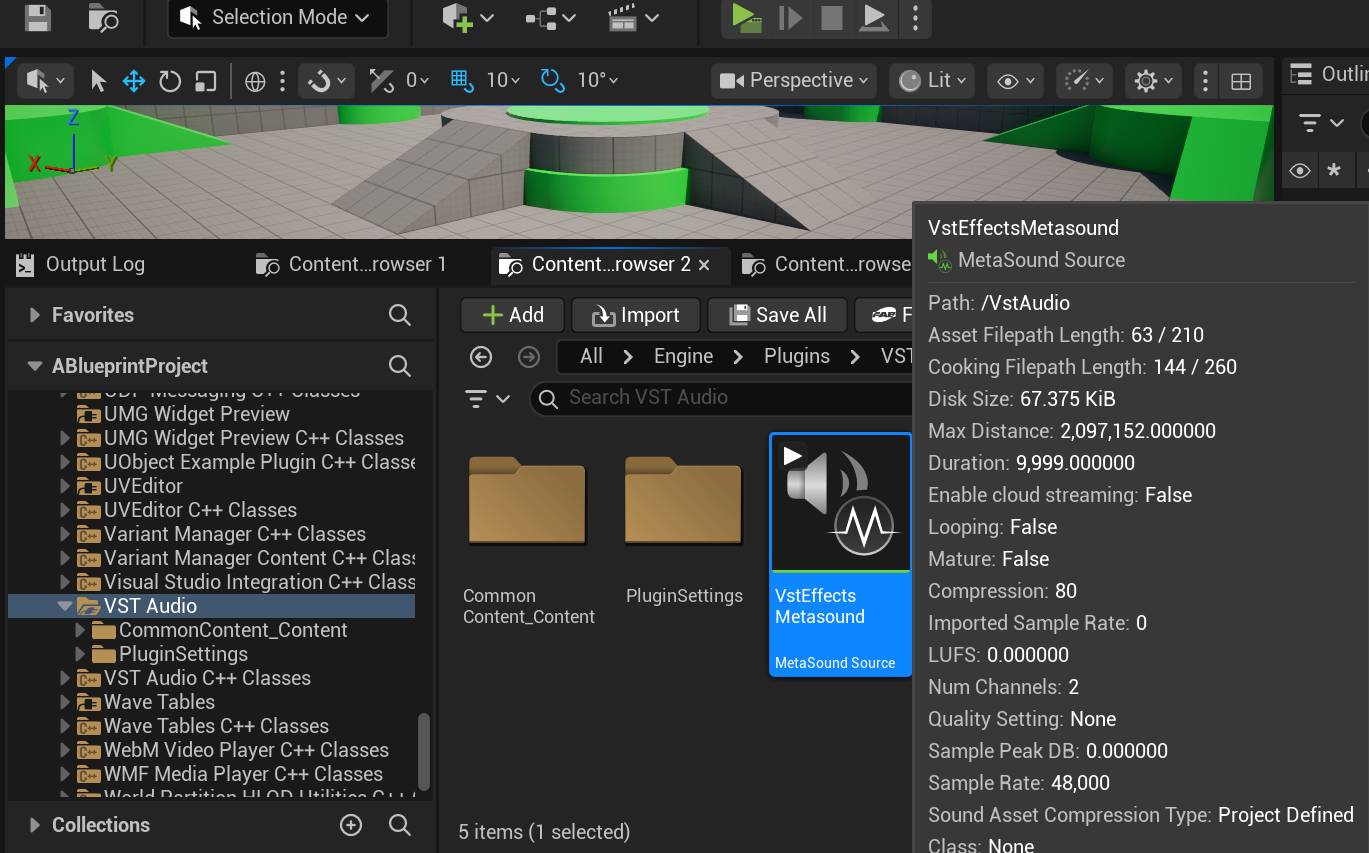
This MetaSound is configured with the following signal chain:
Stereo Output
Wave Player (audio source)
VST Audio Effect Node
Output connected to the MetaSound Source Output
Setting up the Metasound
First, assign an audio file to the Wave Player.
Steps:
Open the VST Effects Metasound
Select the Wave Player node
assign an audio asset to the Wave parameter
This audio signal will pass through the VST Audio Effect Node.
For testing, short loops or music clips work well because they allow continuous playback while adjusting effect parameters.
The VST Audio Effect Node
The VST Audio Effect Node allows you to load and run any VST3 effect plugin inside a MetaSound graph.
This node:
Loads the selected VST3 effect
Processes incoming audio in real time
Outputs the processed audio signal
Supports GUI interaction and parameter editing
Multiple VST effect nodes can be chained together to create complex processing pipelines.
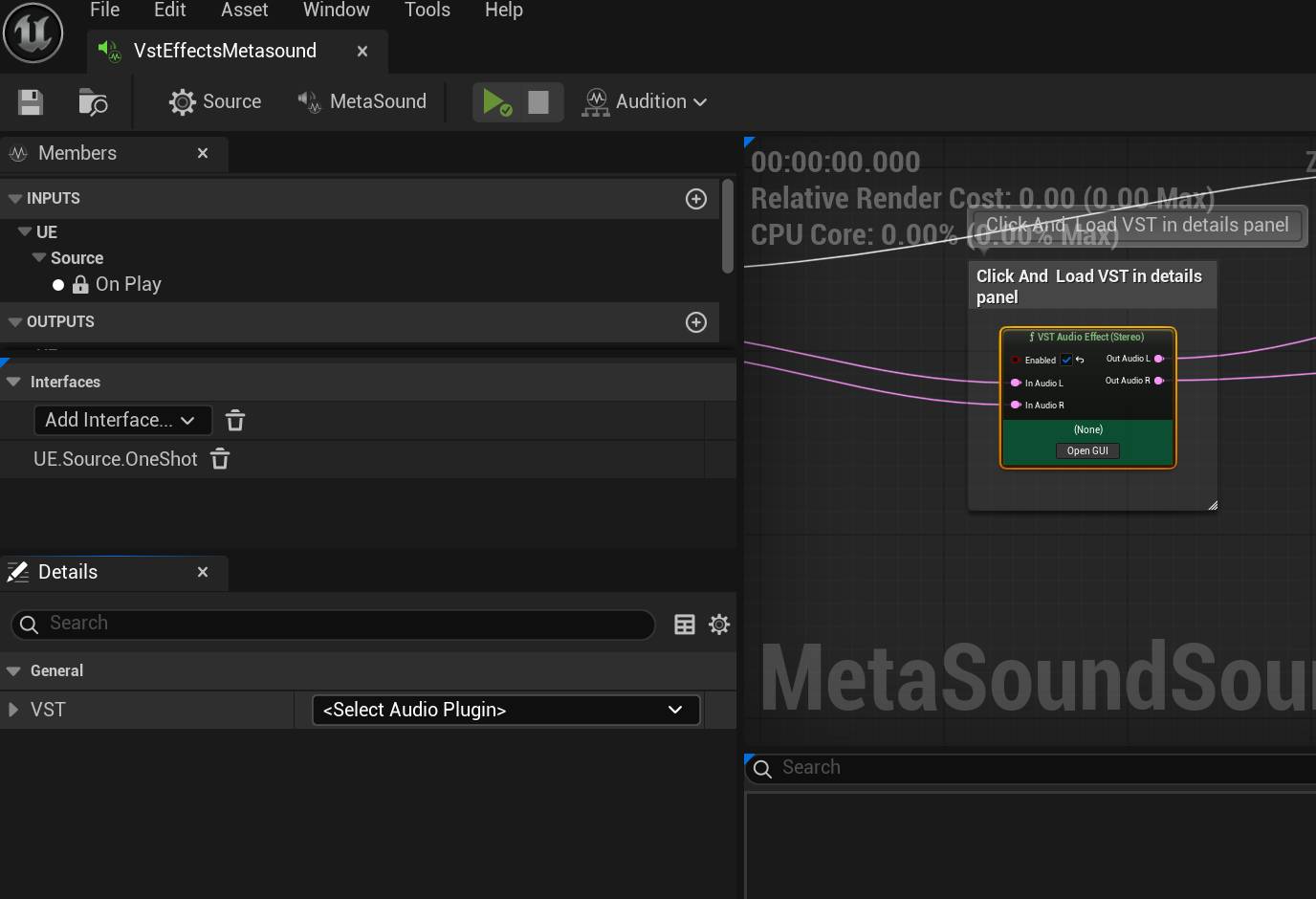
To select a VST effect plugin:
Click the VST Audio Effect Node in the MetaSound graph
In the Details panel, locate the General section
Find the dropdown labeled Select Audio Plugin
Click the dropdown and choose a VST3 effect plugin
The dropdown list is populated from the VST Plugin Manager.
If the list is empty, ensure you have completed the plugin scanning process.
Once selected, the node will automatically load and initialize the effect.
Press Play to hear the effect applied to the Wave Player audio.
Launching the VST Effect Plugin GUI
You can open the VST plugin’s native GUI to adjust parameters in real time.
Steps:
Locate the Open GUI button on the VST Audio Effect Node
Click Open GUI
The plugin’s GUI window will appear.
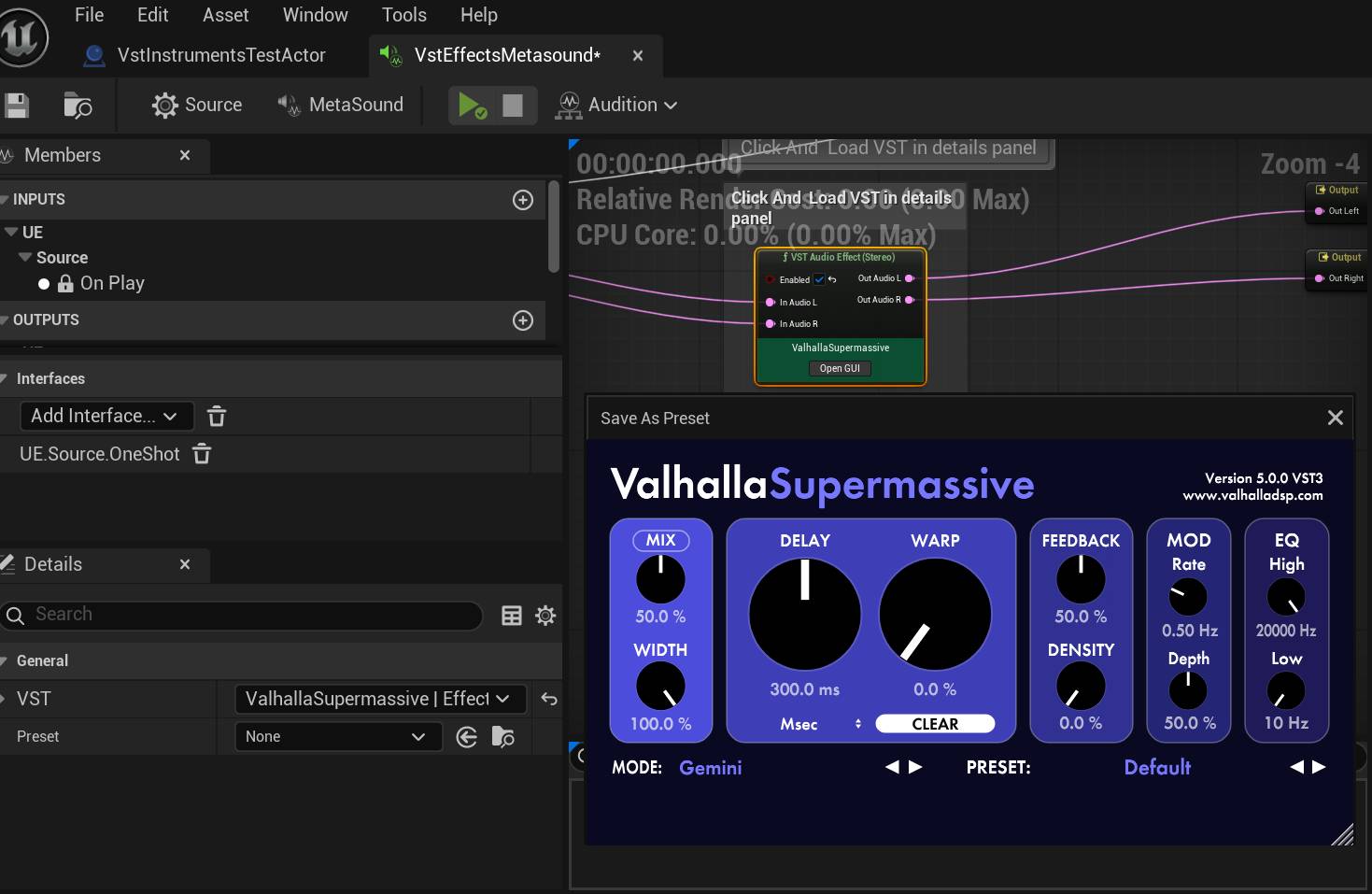
While the MetaSound is playing, you can:
Adjust parameters
Change presets
Modify effect settings
All changes are applied in real time.
Saving Effect Settings
When you adjust parameters in the plugin GUI, those changes are stored in the MetaSound asset.
To save the changes:
Close the plugin GUI window
Click Save in the MetaSound editor
The effect state will be embedded in the MetaSound node.
The next time the MetaSound loads, the effect will initialize with the saved settings.
Next Step
We’ll cover using VST3 Presets in another tutorial. For now take a look at other tutorials.