
VST Audio Plugin Manager
The VST Audio Plugin Manager is a system responsible for discovering and registering all VST3 plugins installed on your system that Unreal Engine should recognize. Similar to the plugin discovery systems found in Digital Audio Workstations (DAWs), this manager provides a centralized way to scan, cache, and access available VST3 plugins.
The primary purpose of this system is to avoid scanning for VST3 plugins every time the engine starts. Instead, plugin information is discovered once and cached, significantly reducing engine startup time.
How It Works
Before Unreal Engine can use your VST3 plugins, you must perform an initial scan.
During this scan, the Plugin Manager will:
Search all configured plugin directories for VST3 plugins
Extract plugin metadata
Create Unreal Engine–reflective data for each plugin
Cache the discovered plugin information for future use
Once cached, Unreal Engine can load plugin information instantly without rescanning the filesystem on every startup.
You only need to perform this scan when:
Installing the plugin for the first time
Adding new VST3 plugins to your system
Changing plugin search paths
How To Scan For And Discover VST Plugins In UE5
After installing the VST Audio plugin, you must perform a one-time scan to discover your installed VST3 plugins.
VST Plugins manager location
Navigate to the following folder in your project:
/VstAudio/PluginSettings/DataAssets/DA_VstPluginsManager
Steps:
Open the Plugins Content Folder
Open the PluginSettings folder
Locate the asset named VstPluginsManager
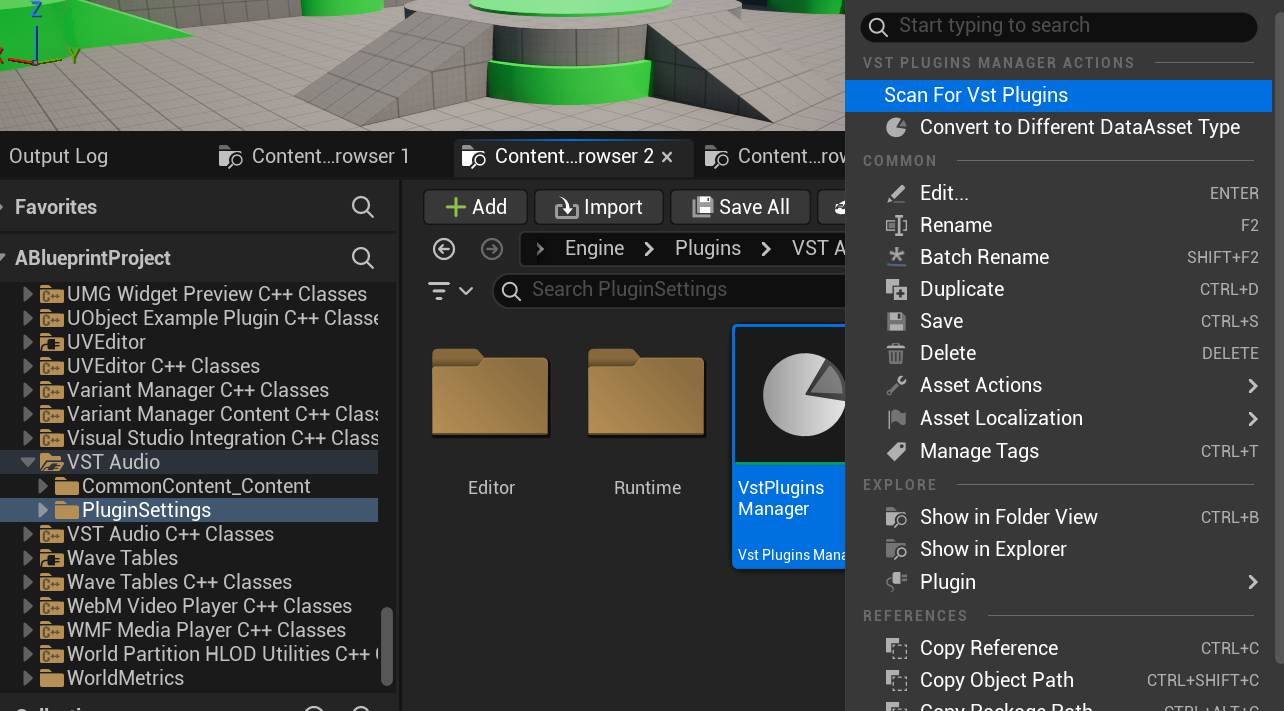
We’ll right click and “Scan For Vst Plugins” right after we configure it below:
Configuring the VST Plugins Manager
Before scanning, you must configure the plugin search paths.
Steps:
Double-click VstPluginsManager to open its configuration settings
Locate the Plugin Search Paths array
Add all directories where your VST3 plugins are installed
Common example paths:
					C:\Program Files\Common Files\VST3
C:\Program Files\Steinberg\VSTPlugins
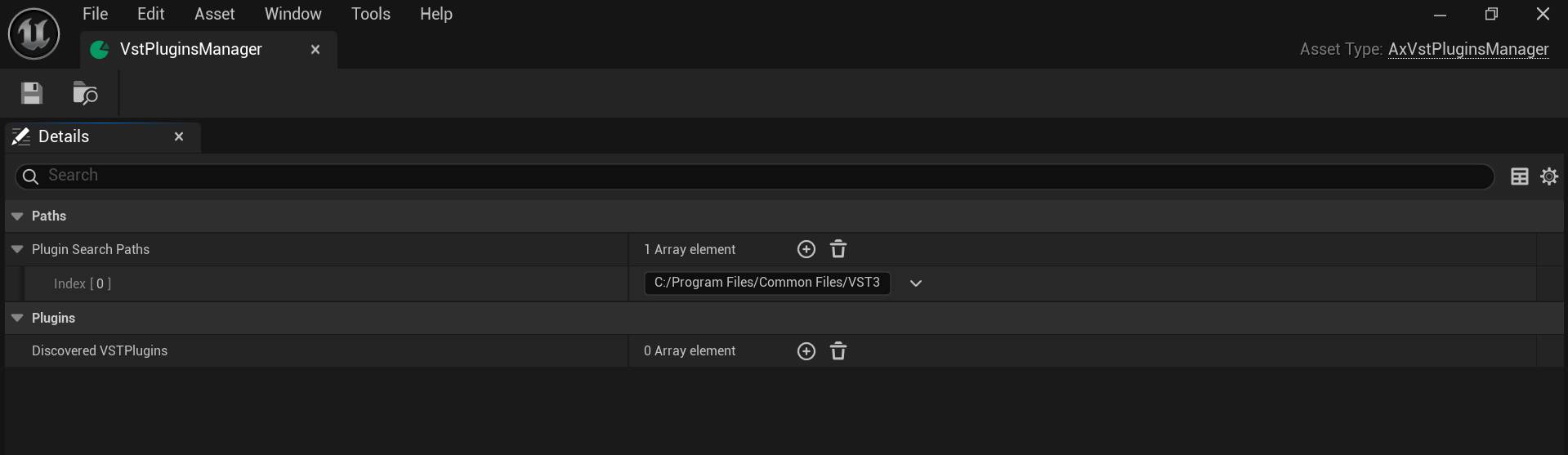
Make sure every directory containing your VST3 plugins is listed. You can also exclude directories by deleting them from this array.
Scanning for VST Plugins
Once the search paths are configured:
Right-click VstPluginsManager
Select Scan For VST Plugins
The manager will:
Scan all configured directories
Discover available VST3 plugins
Populate the DiscoveredVstPlugins array
Cache the results for future engine sessions
This process only needs to be repeated if you install new plugins or modify search paths.
Next Step
Your VST plugin environment is now configured and ready.
You can proceed to the Usage Examples to learn how to load and use VST plugins in Unreal Engine.