
VST Audio | Loading And Playing VST 3 Instruments in UE5
This tutorial explains how to load and play VST3 instruments in Unreal Engine 5 using the VST Audio plugin.
Before continuing, make sure the VST Audio plugin is installed and that you have already scanned for VST plugins using the VST Plugin Manager.
The Vst Instrument Component
As of version 0.7, VST3 instruments are loaded and controlled using the UAxVstInstrumentComponent.
In the Unreal Editor, this component appears as:
VstInstrumentComponent
This is a specialized audio component designed specifically to:
Load VST3 instruments
Initialize them correctly
Support playback in Editor, PIE, and shipped builds
Provide access to the plugin’s GUI and playback functionality
To use a VST3 instrument, add a VstInstrumentComponent to any Actor.
Support for VST3 effects is covered in a separate tutorial.
Example Blueprint: VST Instrument Test Actor
To help you get started quickly, the plugin includes a fully configured example Blueprint.
/VstAudio/VstInstrumentsDemos/Blueprints/BP_VstInstrumentsDemoActor
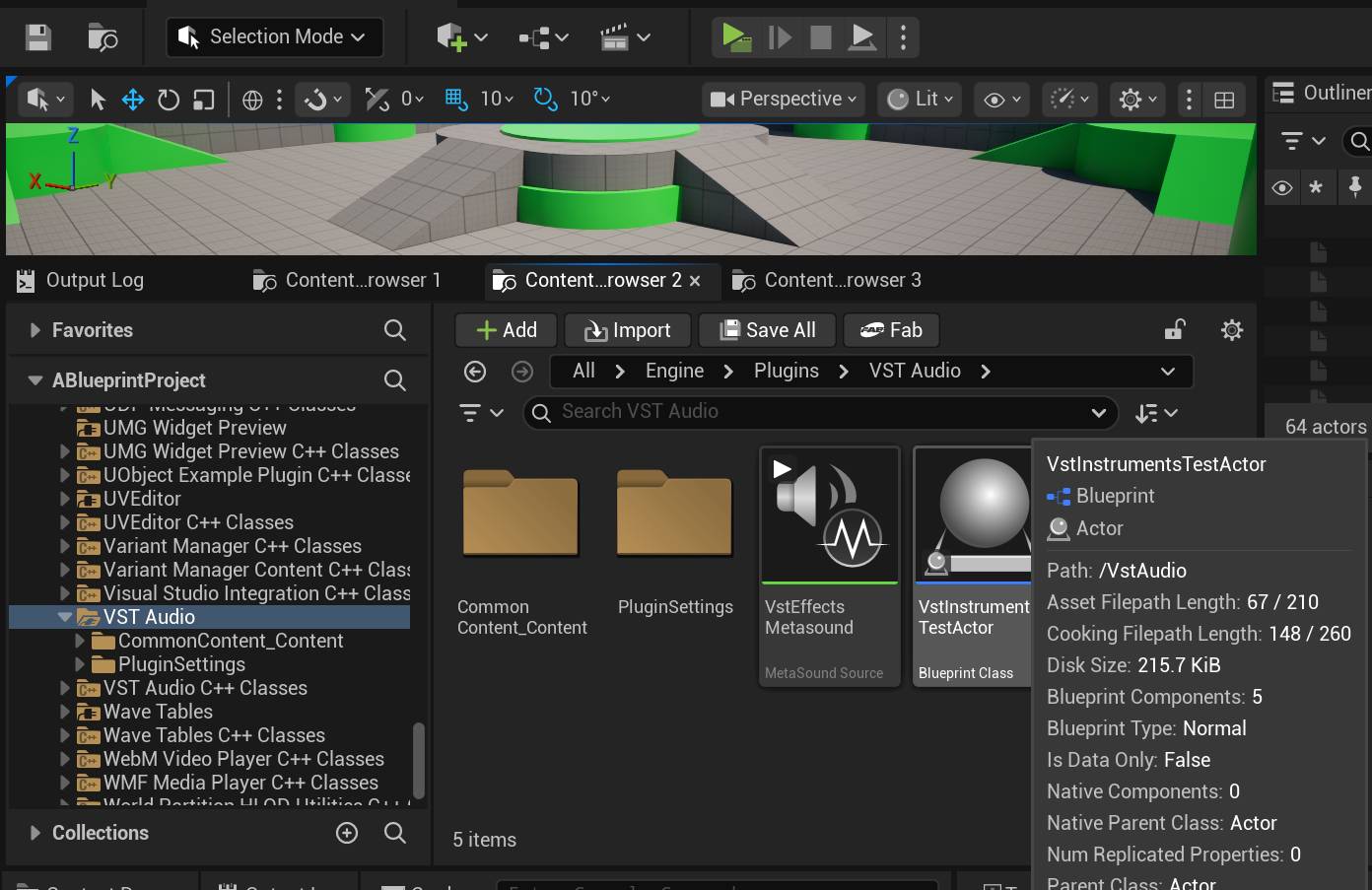
This Blueprint already contains:
A configured VstInstrumentComponent
Input bindings for testing playback
Logic to launch the plugin GUI
Initialization logic for loading the selected instrument
This allows you to begin testing your VST3 instruments immediately.
Selecting the VST Instrument
Open VSTInstrumentTestActorBP, then:
Select the component named VST3Component (or similar)
In the Details panel, scroll to the VST section
Locate the Vst Instrument dropdown
This dropdown allows you to select which VST3 instrument will be loaded when BeginPlay executes.
The list of available instruments is populated from the VST Plugin Manager.
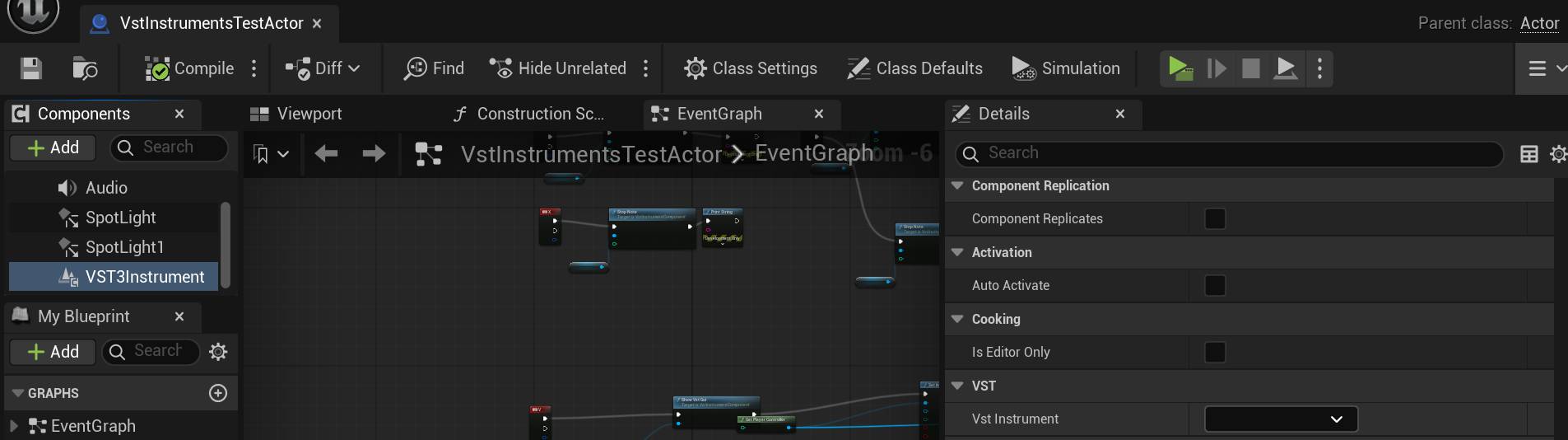
If no instruments appear, make sure you have completed the plugin scanning process described in:
Using the Example Map
/VstAudio/VstInstrumentsDemos/Maps/VstInstrumentsTestMap
The plugin also includes an example map with the test actor already placed in the level.
To use it:
Navigate to the plugin’s Content folder
Locate the example map
Double-click the map to open it
Click Play → New Editor Window (PIE)
When the map starts, a Print String message will display:
True — Instrument loaded successfully and is ready for playback
False — Instrument failed to load
Playing the Instrument
By default, the Blueprint includes keyboard bindings for testing playback.
Press:
C key — Plays a test note using the loaded VST3 instrument
Most instruments will produce sound immediately. However, some instruments require a preset to be selected first.
You may also connect a MIDI controller keyboard to play different notes, or extend the Blueprint to support additional input mappings.
Launching the VST Plugin GUI
To open the plugin’s graphical interface, press:
V key
This will open the VST plugin’s native GUI in a separate window.
From there, you can:
Select presets
Adjust parameters
Play notes using the plugin’s on-screen keyboard
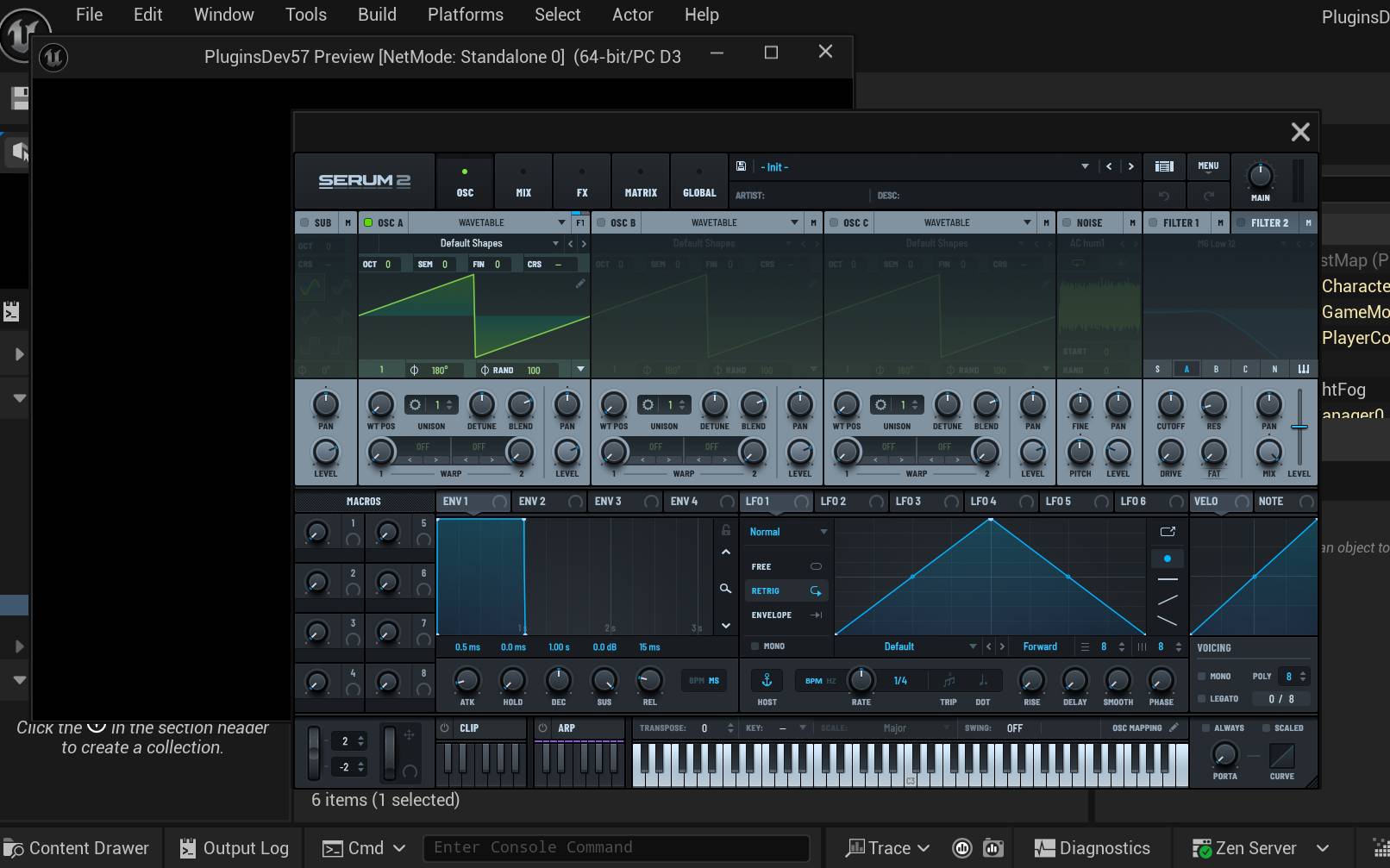
You can close and reopen the GUI at any time. Closing the GUI does not destroy the VST instance—it only hides the interface. The instrument will continue running normally.
This behavior matches standard DAW operation.
Next Step
We’ll cover Runtime(shipped) scanning and loading of VST3 instruments in another tutorial. For now take a look at further getting started tutorials.