
Wobbly : UE5 Disorientation System
Dynamic Screen Distortion for Gameplay and Cinematics
Create convincing disorientation, underwater wobble, and screen-space distortion effects in Unreal Engine with a lightweight, fully procedural system.
Designed for both gameplay feedback and cinematic visuals, this system gives you precise control over how the player perceives the world.
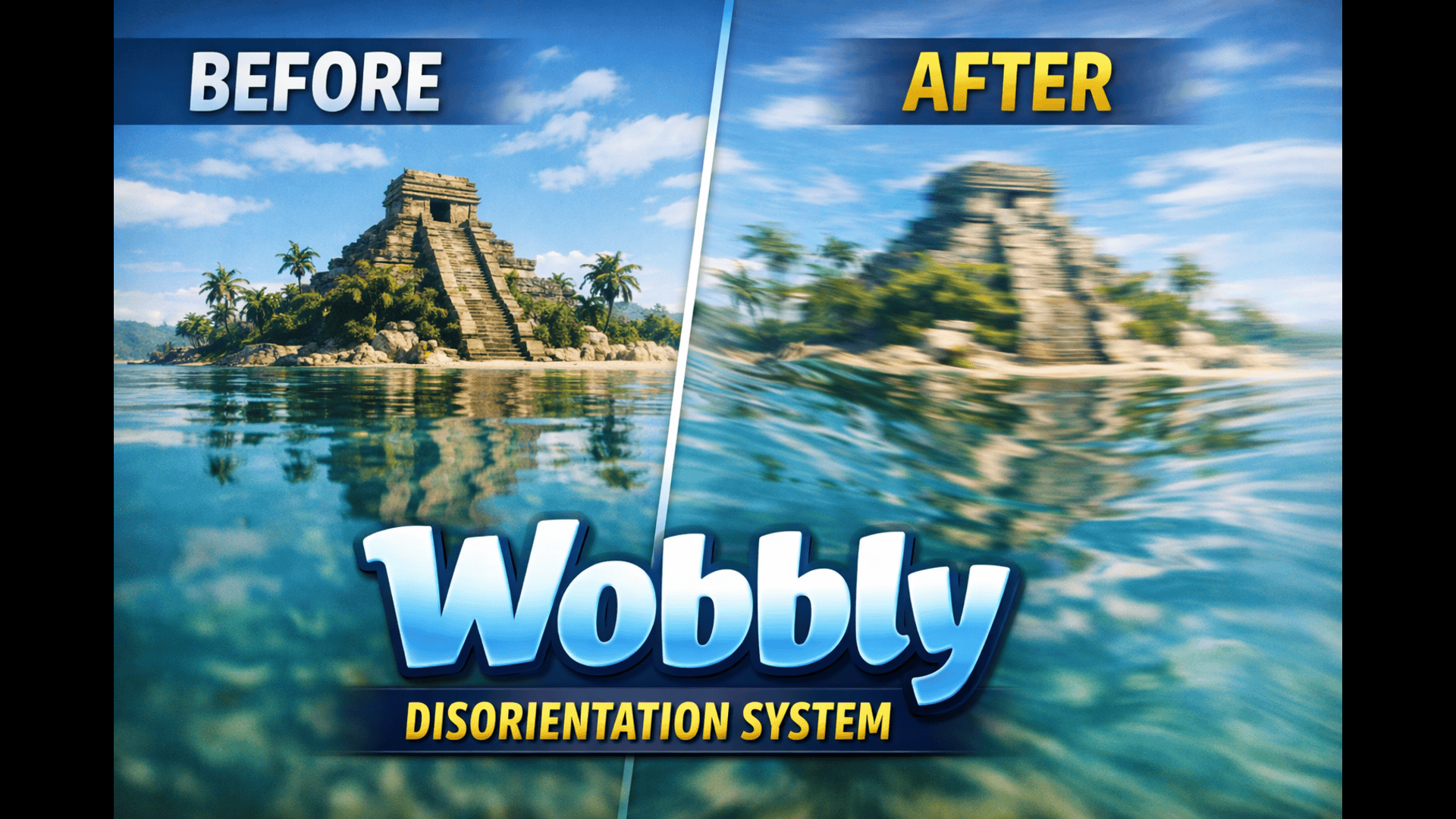
What This System Does
Wobbly simulates real-time visual instability by distorting screen-space UVs using animated wave motion.
This allows you to create effects such as:
- Underwater visual wobble
- Drunk / intoxication distortion
- Environmental heat or pressure distortion
- Dream-like or surreal visual states
- Camera instability during gameplay events
Wobbly Video Demos
0:53
Key Features
Fully Procedural
No textures required. All distortion is generated mathematically, ensuring clean results and minimal setup.
Highly Customizable
Control every aspect of the effect:
- Distortion intensity
- Wave frequency
- Animation speed
- Directional influence
All exposed through material parameters.
Flexible Integration
Works seamlessly with:
- Post Process Volumes
- Camera components
- UMG (via material usage or render targets)
How To Use The System
Wobbly works through Post Process Material. Navigate to the following path and you should find the actor that you can add to any level you’d like to have the wobbly effect applied to:
Wobbly/Blueprints/BP_WobblyPostProcessActor
Once you add this actor to a level , the wobby effect system should immediately start affecting the scene. You can tweak its setting on the details panel of the instance.
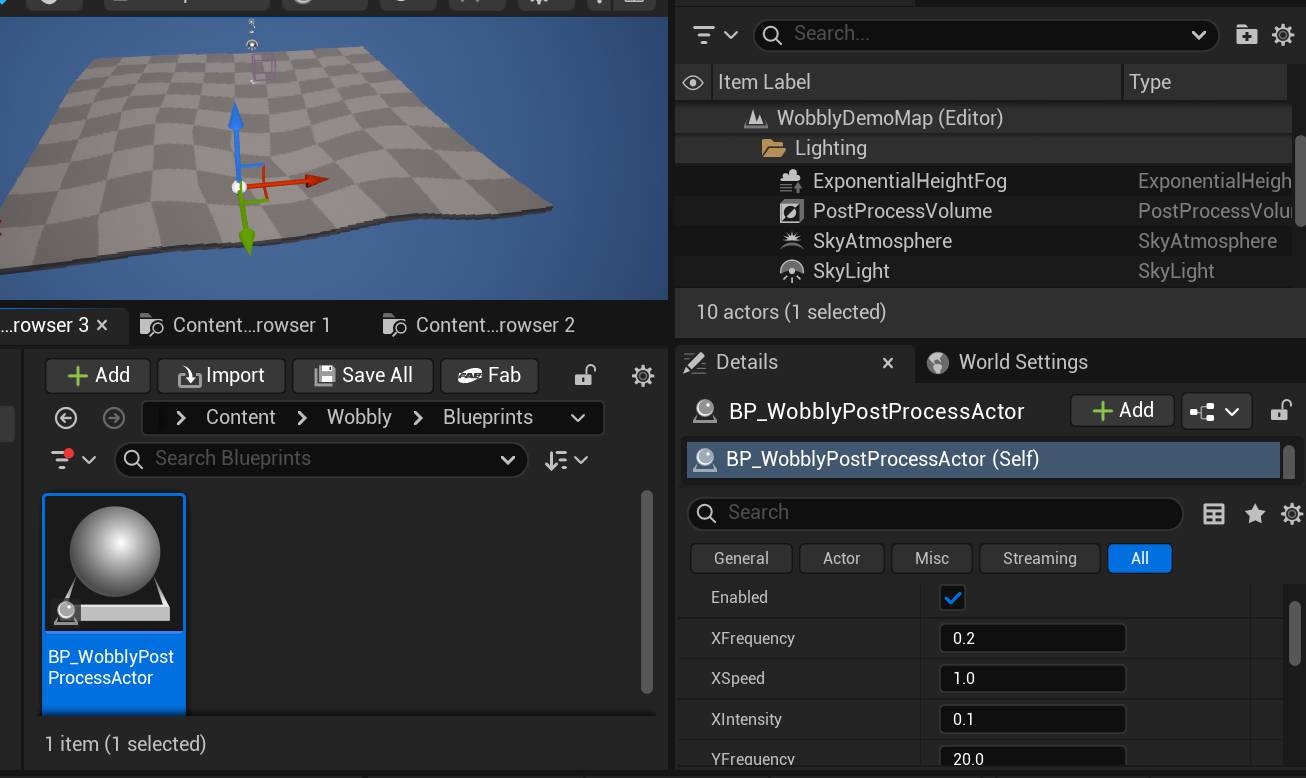
Enabled: This boolean/switch turns the effect on or off.
XFrequency: This value determines how big are the waves/movement on the X Axis.
XSpeed: This value determines how fast the effect is applied on the X Axis
XIntensity: This value determines how intense the effect is applied on the X Axis.
Playing with these values will give you a better idea of what they do.
Driving the system at runtime
The Wobbly Post Process Actor has events you can call from the level or blueprints to control when the system is activated and how intense it is.
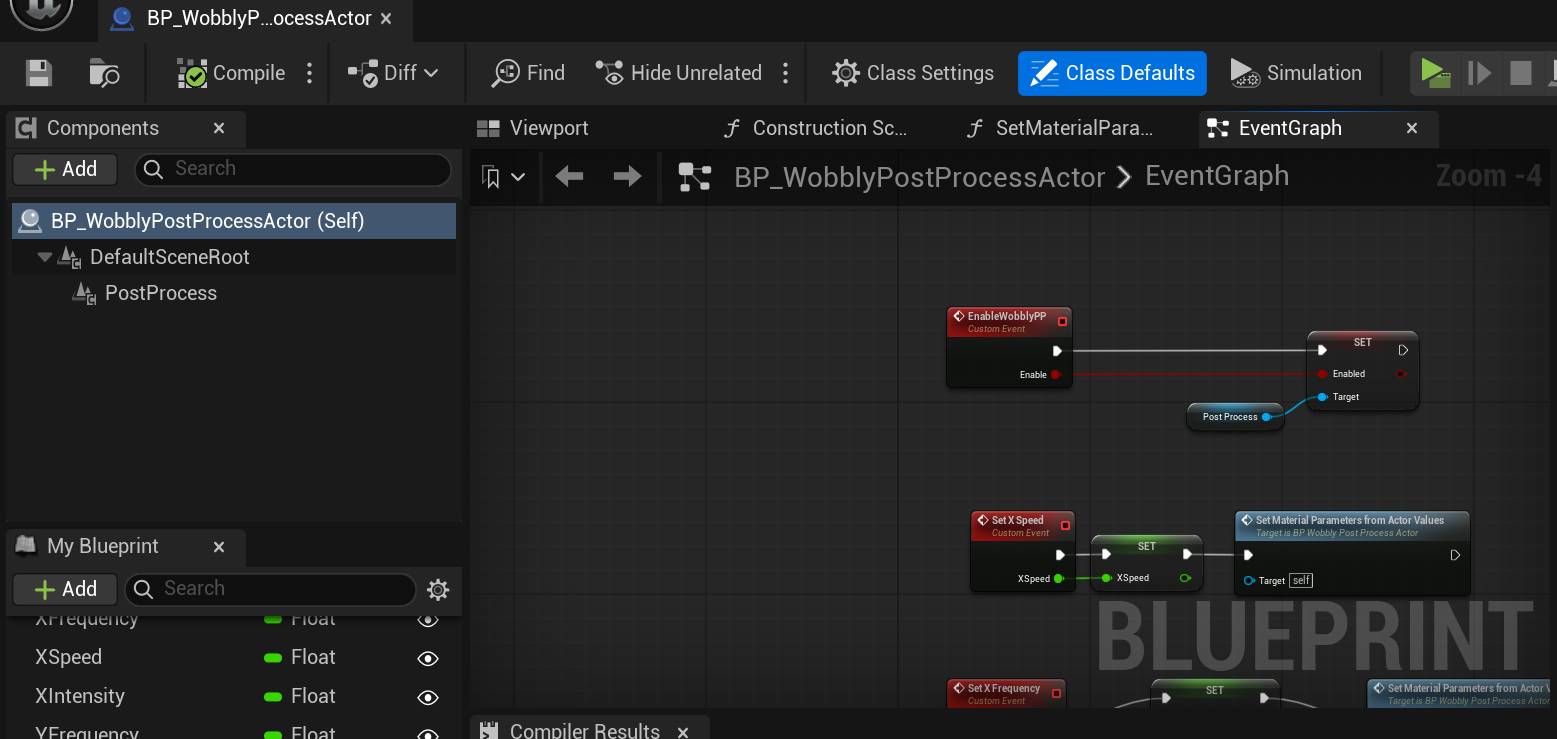
EnableWobblyPP: Call this from anywhere to turn the effect on or off.
Set X Speed: Call this to change the XSpeed value at runtime
Set X Intensity: Call this to change the XIntensity value at runtime
Play Wobble Anim: Call this to temporarily Turn on the effect and turn it off automatically based on the duration you pass in.
Wobbly For UMG Widgets
Typically Post process does not apply to widgets… But the system has a way to apply the same effect to widgets. Open the following Widget blueprint to see how to do so:
Wobbly/Widgets/WBP_WobblyWidgetExample