
Any Weather · Documentation
Getting Started
Set up the weather, then try it out: the time of day, a few weathers, and a thunderstorm in Play. Everything happens in the Details panel, with no code. You need Unreal Engine 5.8; Any Weather is enabled by default.
← All Any Weather documentation1 · Set it up
Three clicks to a living sky
- Drag BP_AnyWeatherSystem from Window > Place Actors > Weather into your level. One per level.
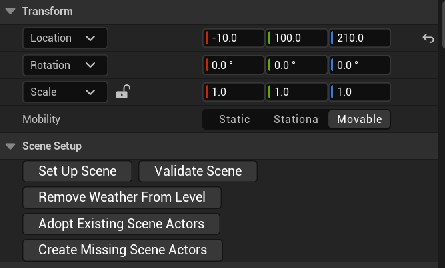
- In the Details panel, click Scene Setup > Set Up Scene. It takes over your sun, sky, clouds and fog, and usually adds a moon.
- Tick Debug > Show Debug Readout to see the time, weather and wind on screen. If the viewport shows nothing, turn on Realtime (Ctrl+R) and Show Stats (Shift+L).
You now have 09:00 on a partly cloudy day. Got an old BP_Sky_Sphere in the level? Delete it: the weather draws its own sky.
2 · Find your way around
Where the settings live
Select the weather system. Its own settings (Preview, Debug, Quality) show in the Details panel straight away. Click a component in the list at the top for the rest:
▾ BP_AnyWeatherSystem
Changes on the placed actor apply to this level only, and the yellow reset arrow undoes them.
3 · In the editor, no Play
Try the time of day
On TimeOfDay, set Initial Time Of Day Hours. The viewport updates when you release the slider.
▾ Set it to → you'll see
Watch a whole day: set Day Length Minutes to 2, then tick Preview > Run Clock In Preview on the actor. A day now passes every 2 minutes, and the clouds speed up with it. Set it back to 30 afterwards.
4 · In the editor, no Play
Try the weather
On GlobalWeather, pick a Weather > Initial Preset. The viewport shows it fully settled.
▾ Pick → you'll see
Watch one weather turn into another: set Initial Preset back to DA_Weather_PartlyCloudy. On the actor, set Preview > Preview Transition Preset to DA_Weather_Thunderstorm and click Start Preview Transition. Over 10 seconds the clouds thicken, fog moves in and the rain starts.
5 · Let it run
Make the weather change on its own
On GlobalWeather, the Schedule section already uses the Climate Weather Scheduler with DA_Climate_Temperate. Tick Scheduler Enabled. In Play, the weather holds the Initial Preset for Initial Hold Seconds, then the climate picks what comes next and blends to it. Want your own forecast in order instead? Pick Sequence Weather Scheduler and add Entries.
6 · Press Play
The showpiece: a night thunderstorm
- On TimeOfDay, set Initial Time Of Day Hours to 21.5 and tick Start Paused.
- On GlobalWeather, set Initial Preset to DA_Weather_Thunderstorm.
- Press Play. Lightning lights up the scene several times a minute, bolts drop to the ground, and rain leans in a gusting wind over soaked ground.
Set everything before you press Play. Editing the components of the Play copy switches its effects off until you type ax.Weather.Rebuild in the console (the backtick key).
7 · Good to know
Wind, sound, local weather and undo
One wind for the level
On Wind, tick a value under Level Override to replace it in every preset. A cyan arrow on the actor shows where the wind blows. For still air, tick Speed 0 and Gustiness 0.
Add your own sounds
No sounds ship with Any Weather. On AudioEffect, add looping sounds under Layers. On LightningEffect, set the near and far thunder sounds. They fade with the weather and muffle under cover.
Local weather
Drag a zone volume in from Place Actors > Weather, size it, and set its Zone Preset. Walk in and the weather changes there, while the rest of the map stays as it is.
Taking it out
Click Scene Setup > Remove Weather From Level. Your sky gets its original settings back and the added moon is removed. Ctrl+Z brings it all back.
That's it. More articles are on the way. Stuck, or after a look we haven't shown? Send us a message or an image of your design and we'll help you build it.